Mostrando entradas con la etiqueta máquinas virtuales. Mostrar todas las entradas

Formas de ejecutar programas de windows en linux

Posted: domingo, 8 de septiembre de 2019 by Termita in Etiquetas: , , , , , , , , , , , ,
0

Wine
(wine, winehq)
Q4wine
Winetricks

CrossOver Linux
(solución propietaria, no libre)

Máquina Virtual
qemu
virtualbox
vmware

VLC


---------------------
Fuentes y enlaces de interés

Osboxes, un sitio de donde descargar máquinas virtuales ya cocinadas

Posted: sábado, 22 de junio de 2019 by Termita in Etiquetas: , , , , , ,
2

Desde la página Osboxes se pueden descargar máquinas virtuales de todo tipo ya cocinadas, tanto para VMware como para Virtual Box.

Todas las máquinas virtuales de VirtualBox y VMware cocinadas por Osboxes tienen el mismo USUARIO y CONTRASEÑA.
Por supuesto, después de identificarse en la máquina virtual el usuario puede cambiarlos o crear un usuario nuevo.

Username – osboxes
Password – osboxes.org
For Root user account
Password – osboxes.org


En la página oficial hay también una guía de uso de estas máquinas y
también dos videoguías: una para Virtual Box y otra para VMware.


Hay otro sitio en github llamado  "Virtual Machines" que contiene bastantes máquinas virtuales ya cocinadas. Esta información es un aporte de David.


------------------------------


VirtualBox

How to attach/configure image with VirtualBox?

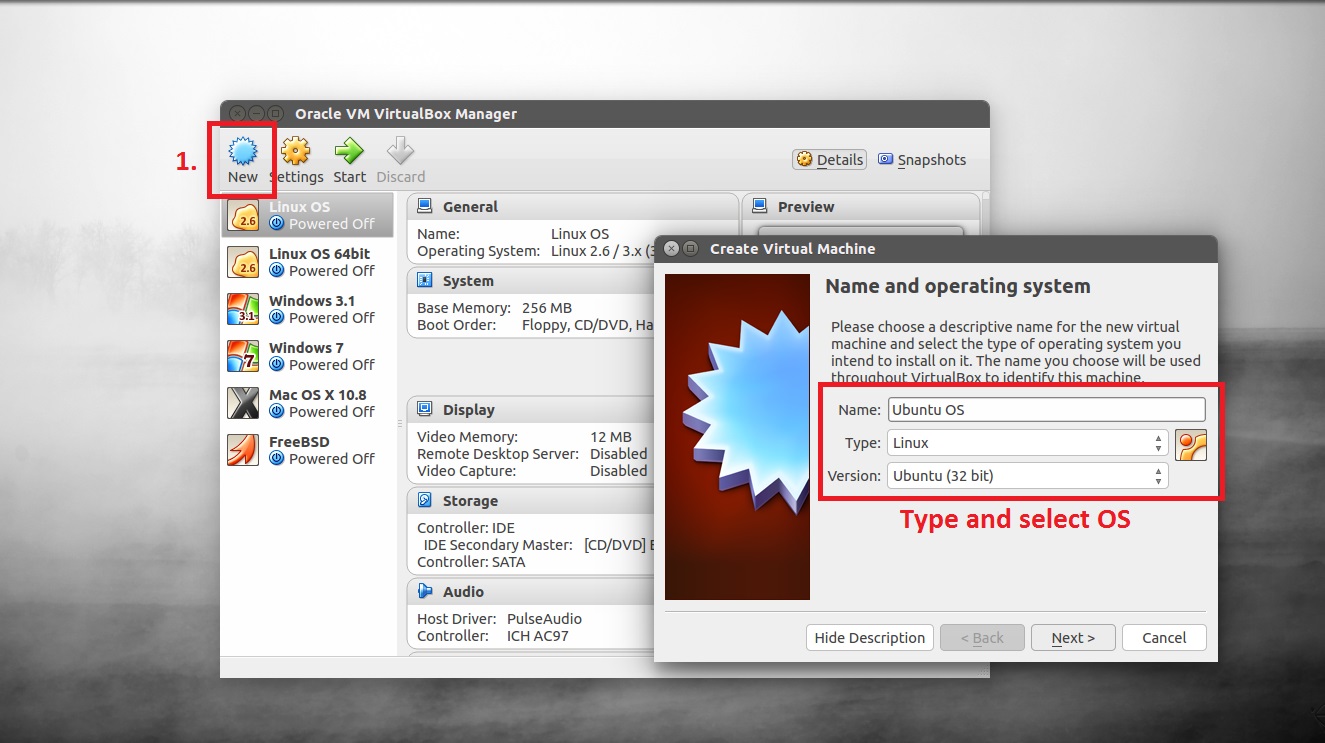
  • Open VirtualBox click on New button
  • Type OS Name and select OS Type
  • and click Next
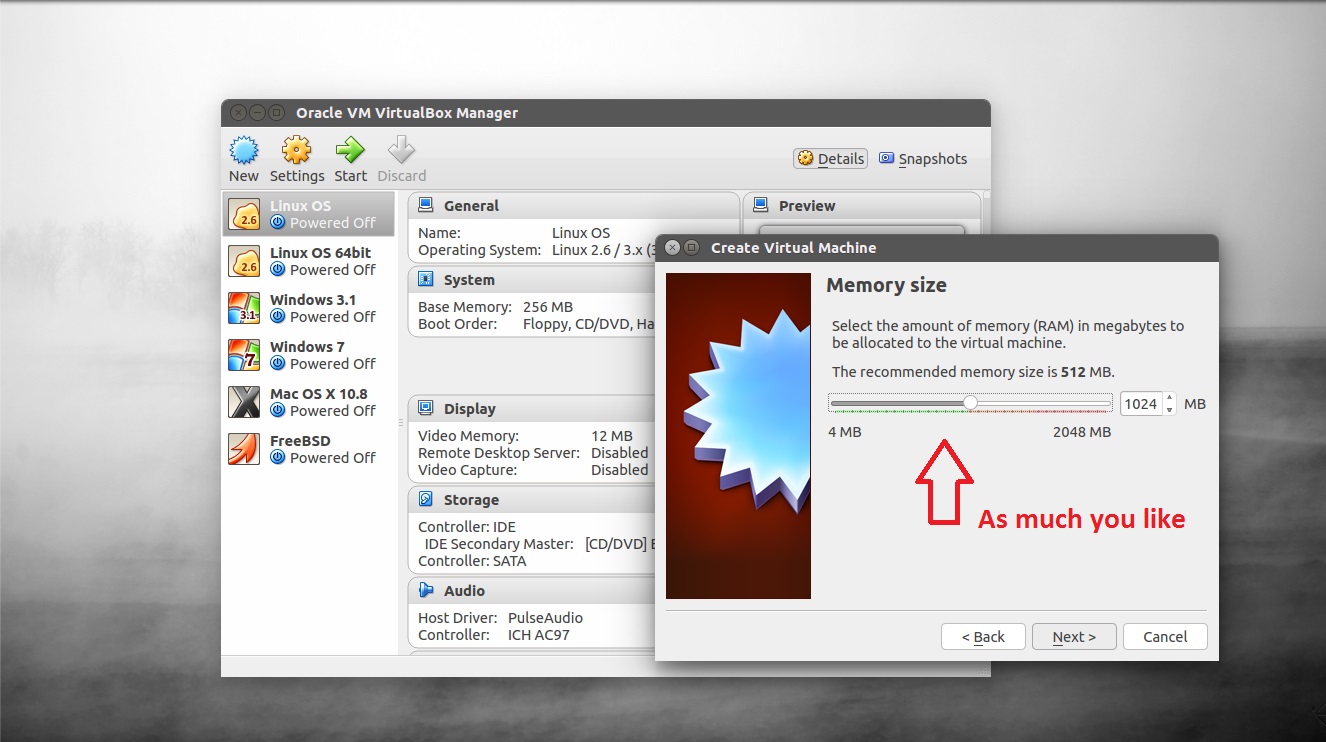
  • Here you can set Ram (memory) for your virtual machine
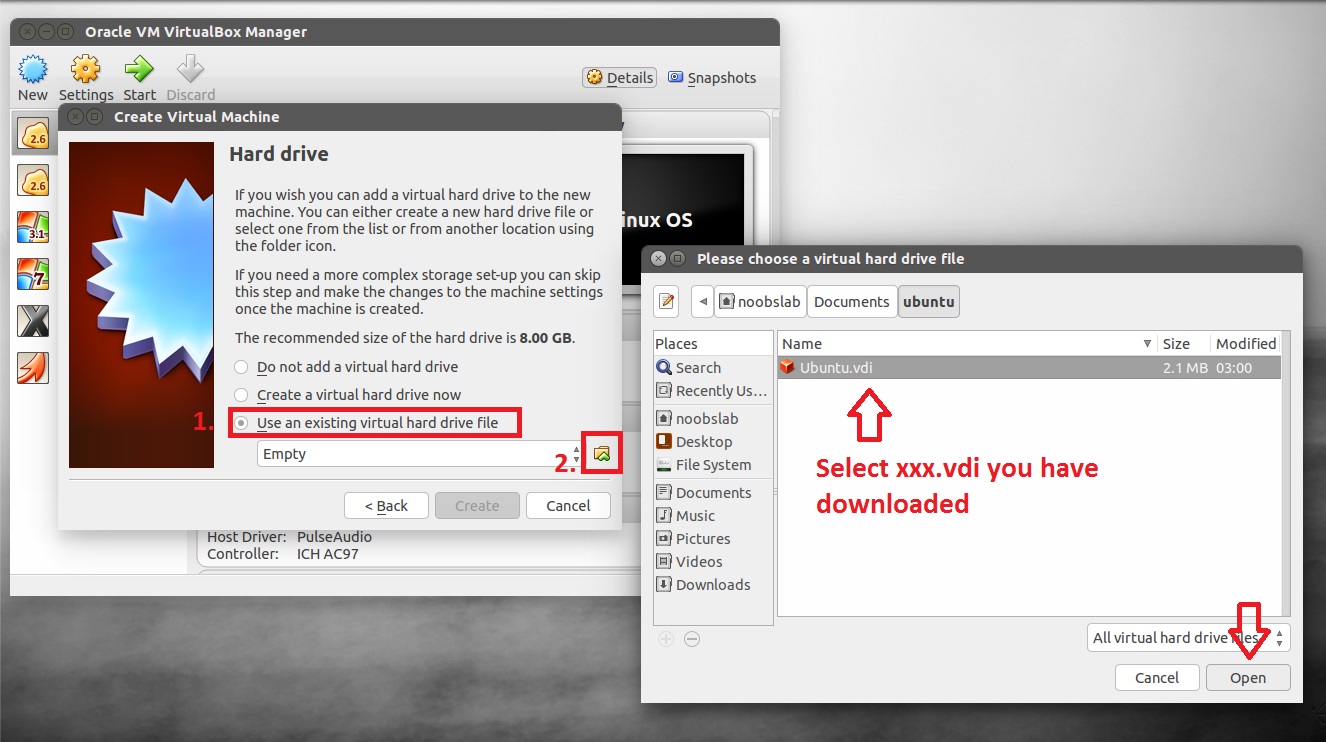
  • When you reach at this window select 3rd option Use an existing virtual hard drive file
  • Click on little folder to open file browser
  • Navigate to directory where VDI image is located
  • Select xx.vdi image and click OK
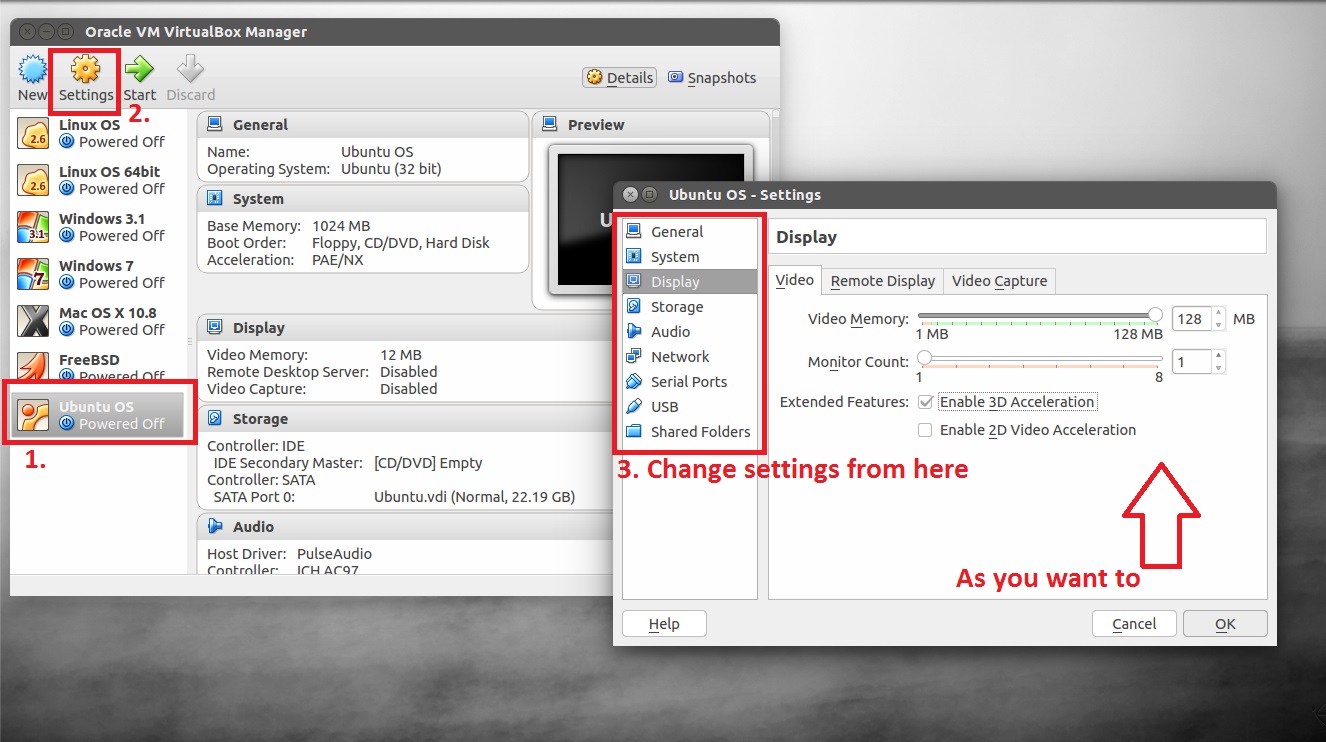
  • Once Virtual Machine is created, select virtual machine and click on Settings
  • In this picture you can see max video memory given to virtual machine. You can do that for better performance.
  • Also check Enable 3D Acceleration, if you get any problem with VirtualBox after enabling it then disable this option.
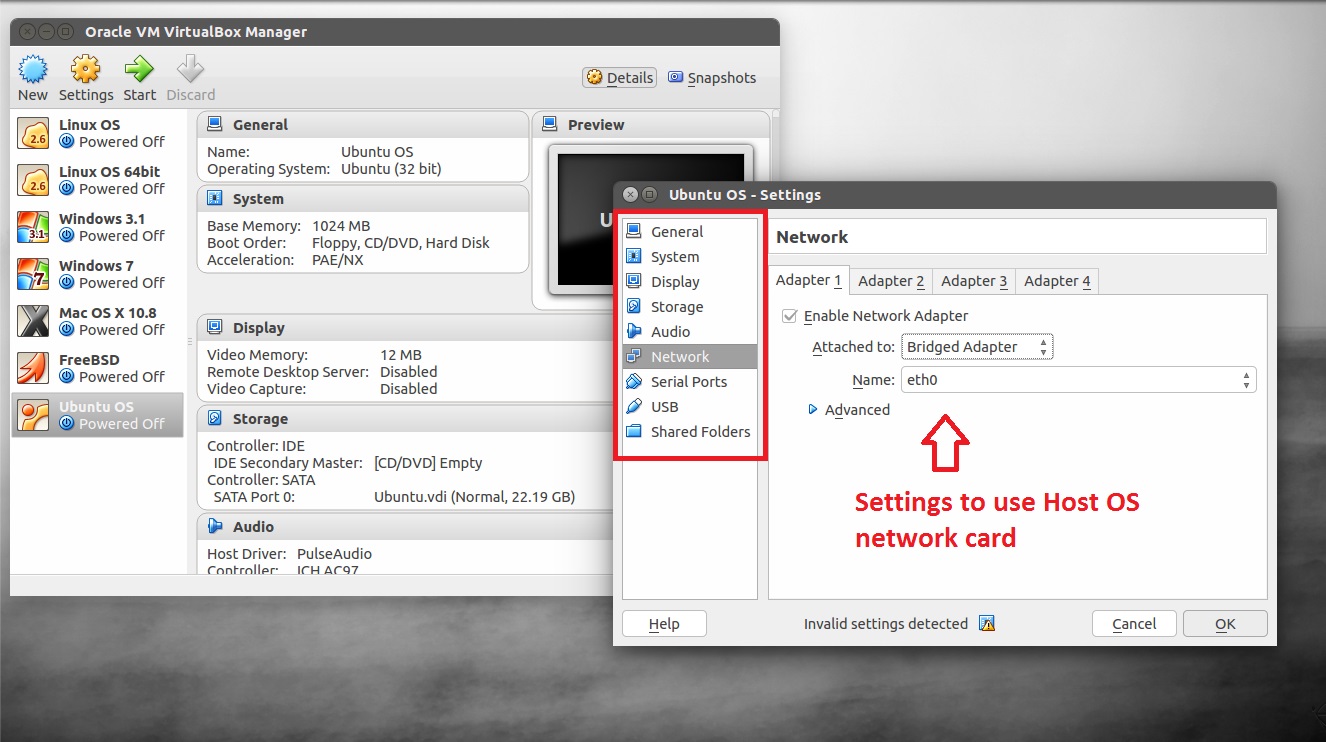
  • To use Network card that is already connected to Internet, navigate to Network
  • Select Bridged Adapter and adapter you are using (for Wifi select wlan and for Lan select eth).
  • Further you can play around with settings but these were important to configure. Also keep in mind that changing some settings can be a problem, you may not be able to boot virtual machine then you have to change those settings back.

How to install Guest Additions?

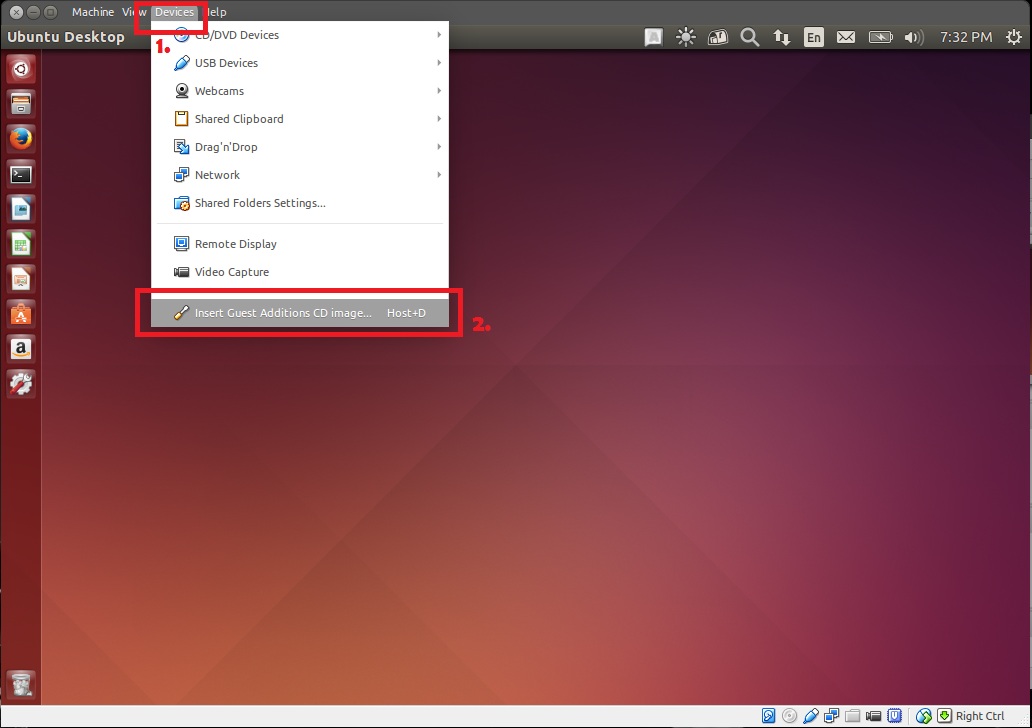
  • Once you turn-on the Virtual machine, click on Devicesmenu
  • Select Insert Guest Additions CD image… option
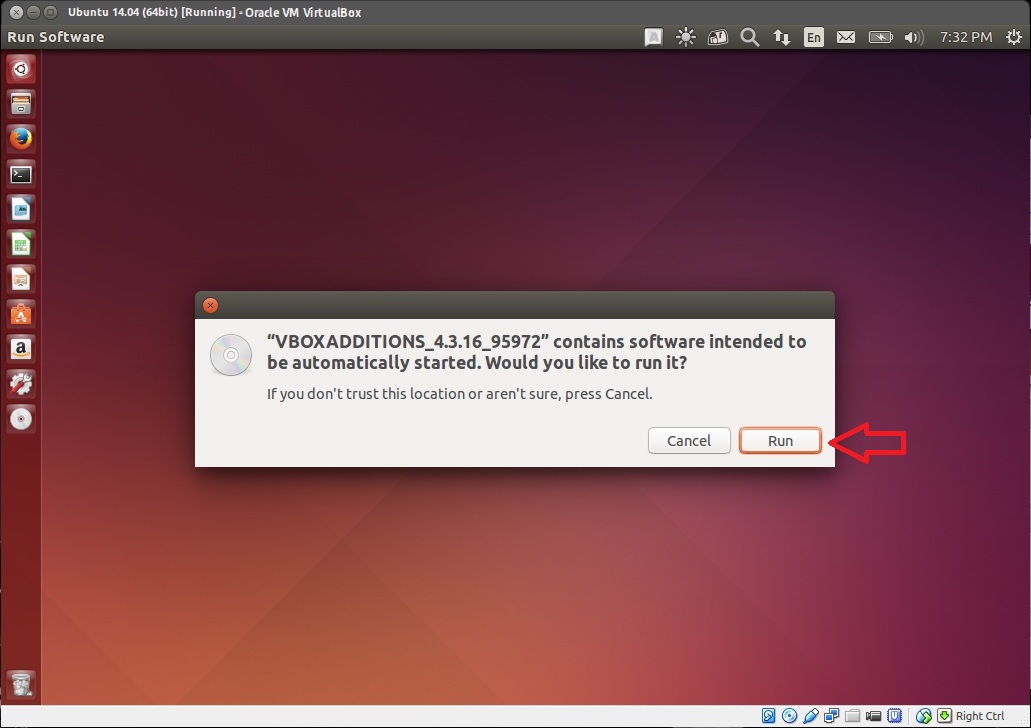
  • Some Operating systems auto-prompt to install Guest Additions (Like Ubuntu)
  • If you get it click on Run
  • Alternatively check following instructions
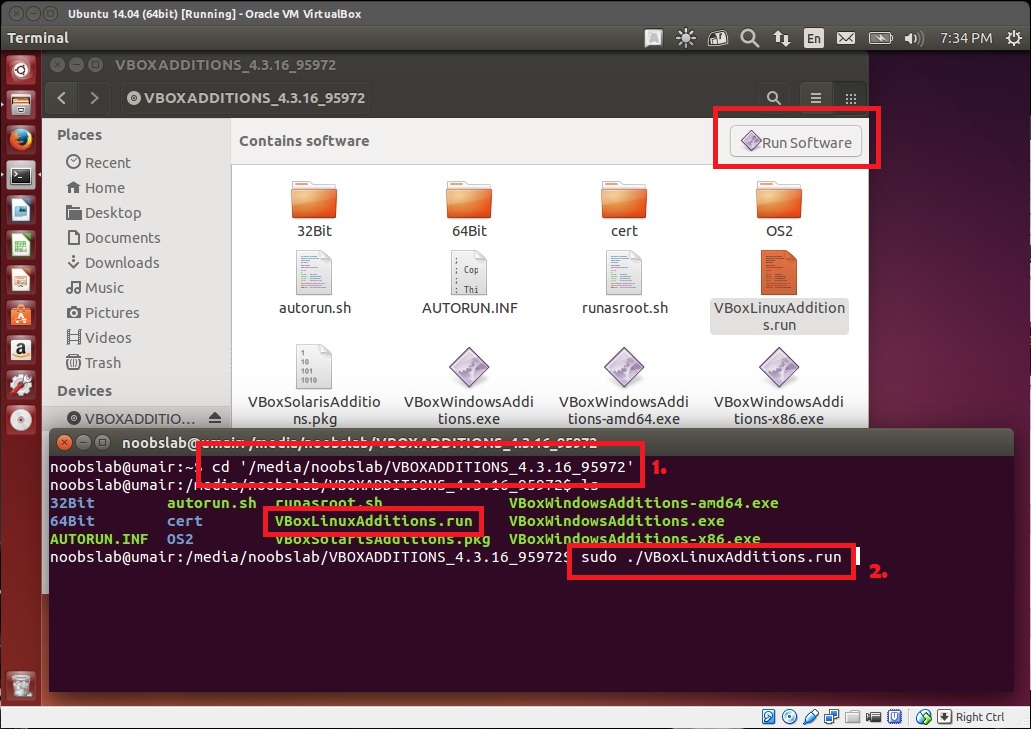
  • Open VBOXADDITIONS from file manager and copy file to some directory
  • Open Terminal and go to directory where you copied VBOXADDITIONS (If you see button on top right side of file manager saying Run Software then click on it to start installation and don’t follow next line instruction)
  • Now run command to start Guest Additions installation sudo ./VBoxLinuxAdditions.run
  • Once installation finished, just reboot virtual machine.

VMware

How to attach/configure image with VMware (VMDK file version)?

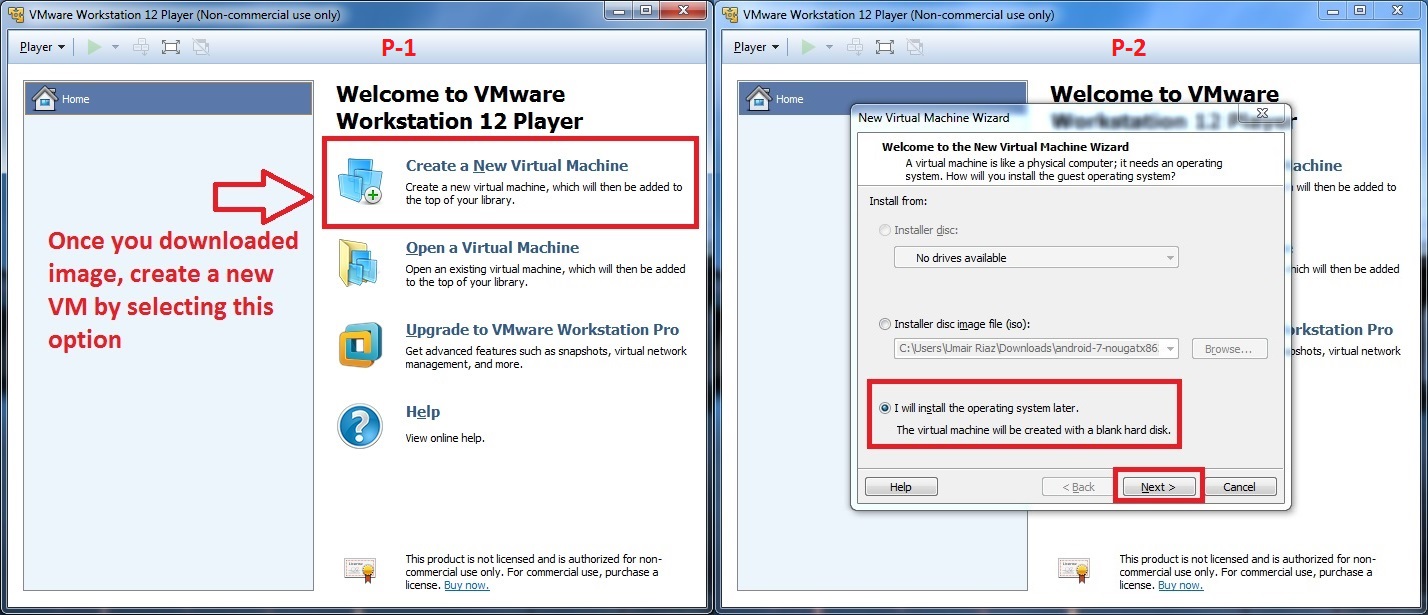
P-1
  • First of all Download image and extract it somewhere
  • Open VMware and click on Create a New Virtual Machine
P-2
  • Select “I will install the operating system later.”
  • click on Next
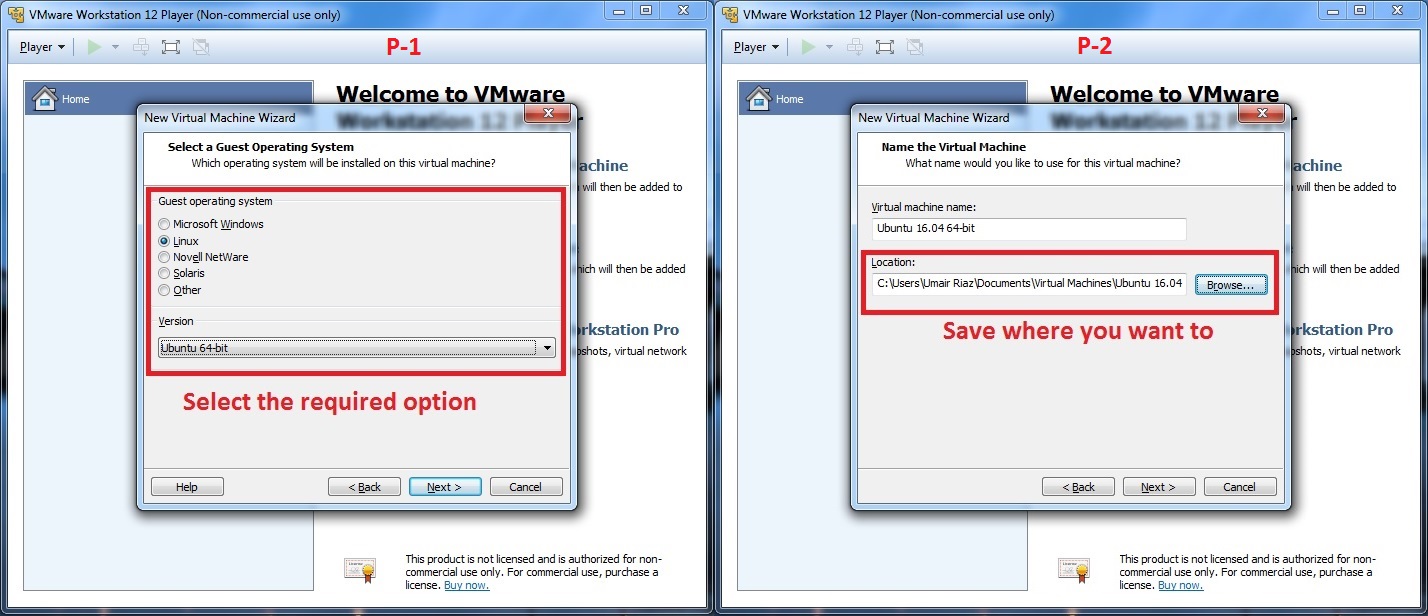
P-1
  • Select OS you wish to run
  • Click Next
P-2
  • Give any name to virtual machine
  • Set location where you want to save your VM files
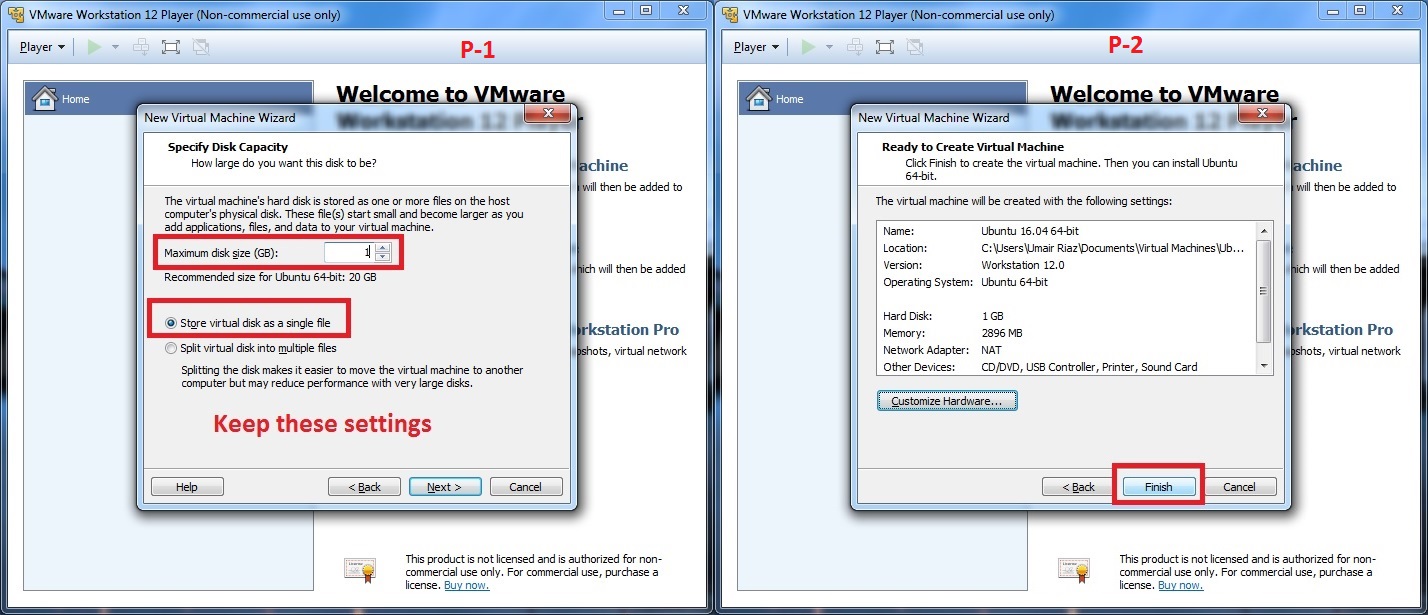
P-1
  • Set maximum disk size to 1GB
  • Select “Store virtualdisk as a single file”
  • Click on Next
P-2
  • Click on Finish
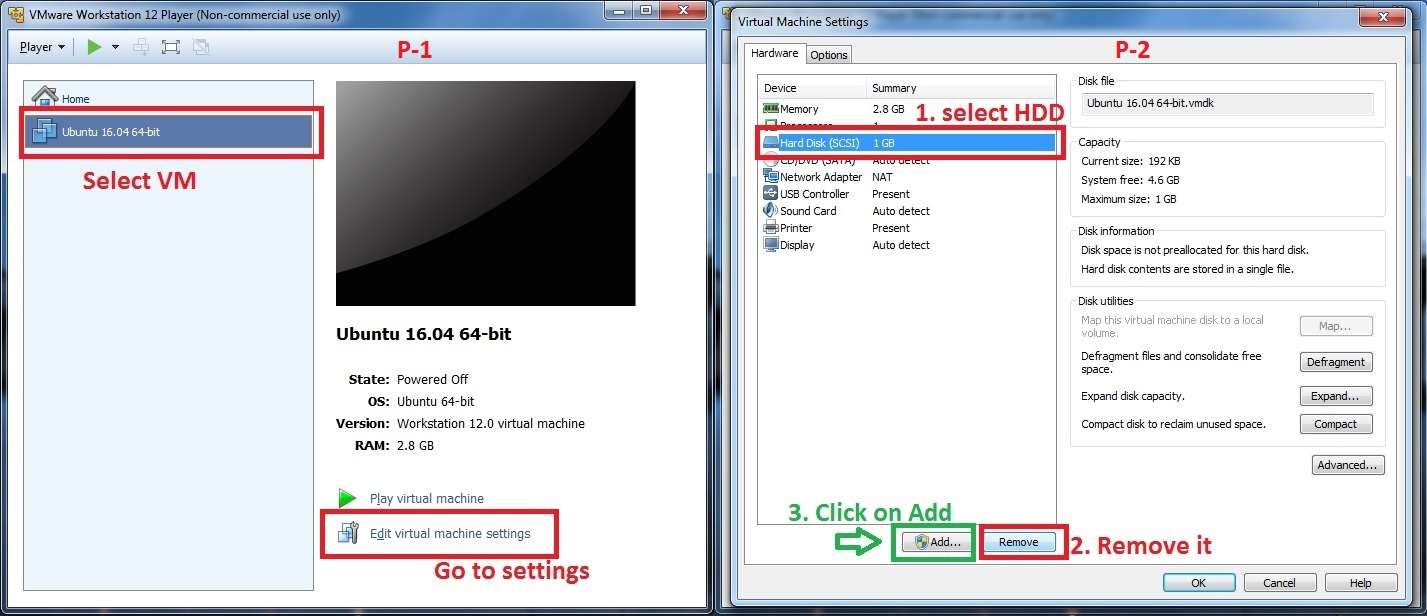
P-1
  • Select the VM you have just created
  • Go to “Virtual Machine Settings”
P-2
  • Select Hard Disk and click on Remove
  • Now click on Add
P-1
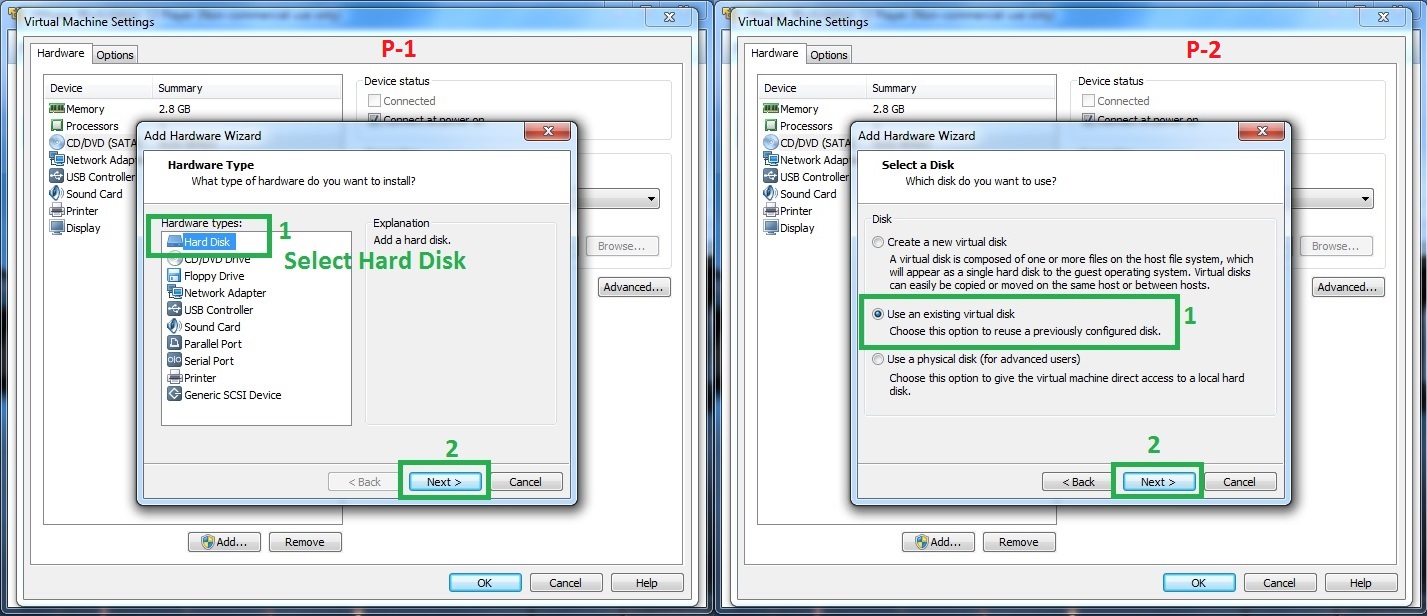
  • Select the Hard Disk option
  • Click on Next
P-2
  • Select Use an existing virtual disk
  • Now click on Next
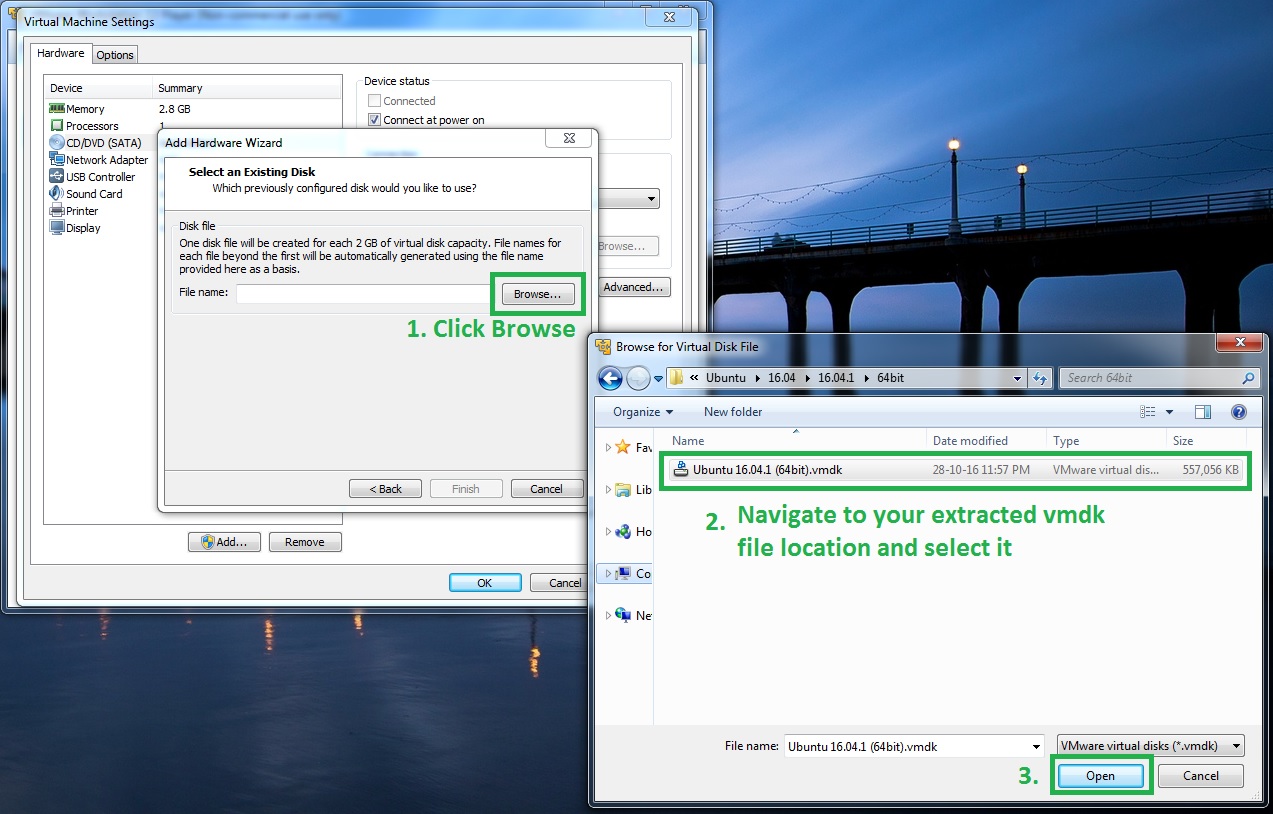
  • Click on browse button
  • Navigate to location where you have extracted VMDK
  • Select and click on Open
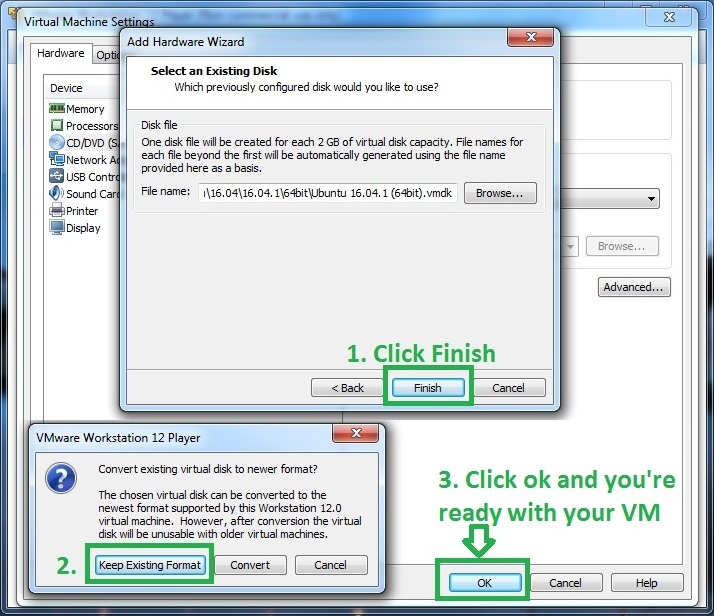
  • Now click on Finish
  • It will open a dialog, select Keep Existing Format
  • Now click on OK and you are ready to use your VM

How to attach/configure image with VMware (VMX Version)?

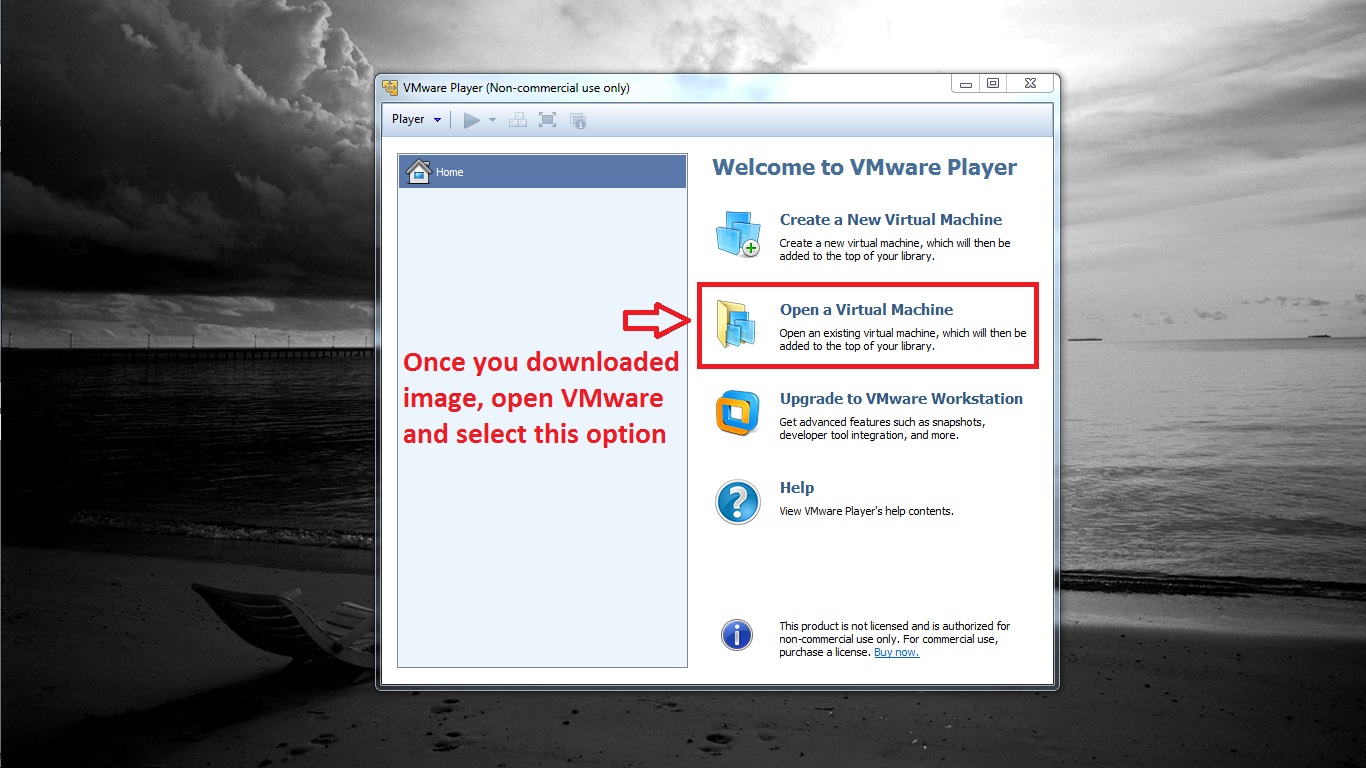
  • First of all Download image and extract it somewhere
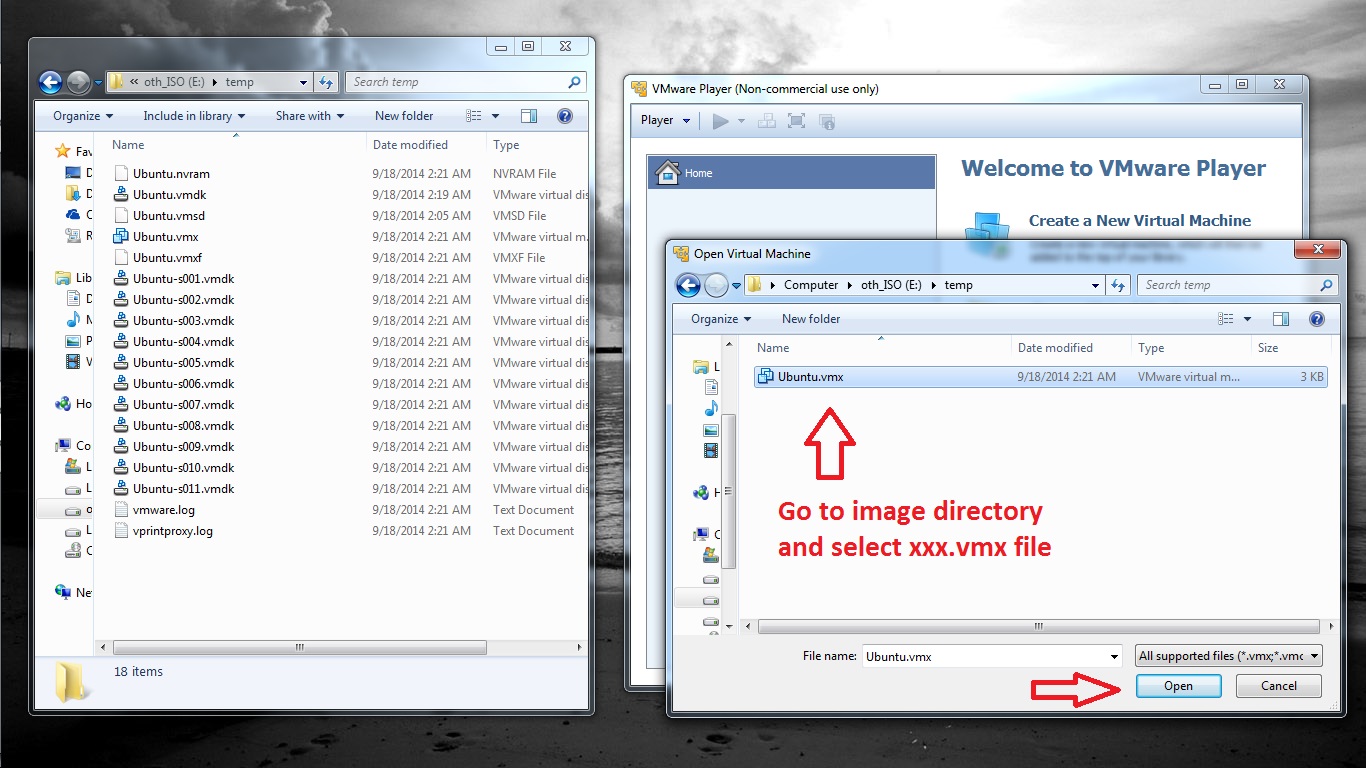
  • Open VMware and click on Open a Virtual Machine
  • Navigate to directory where you extracted the image and select xx.vmx image.
  • Click open
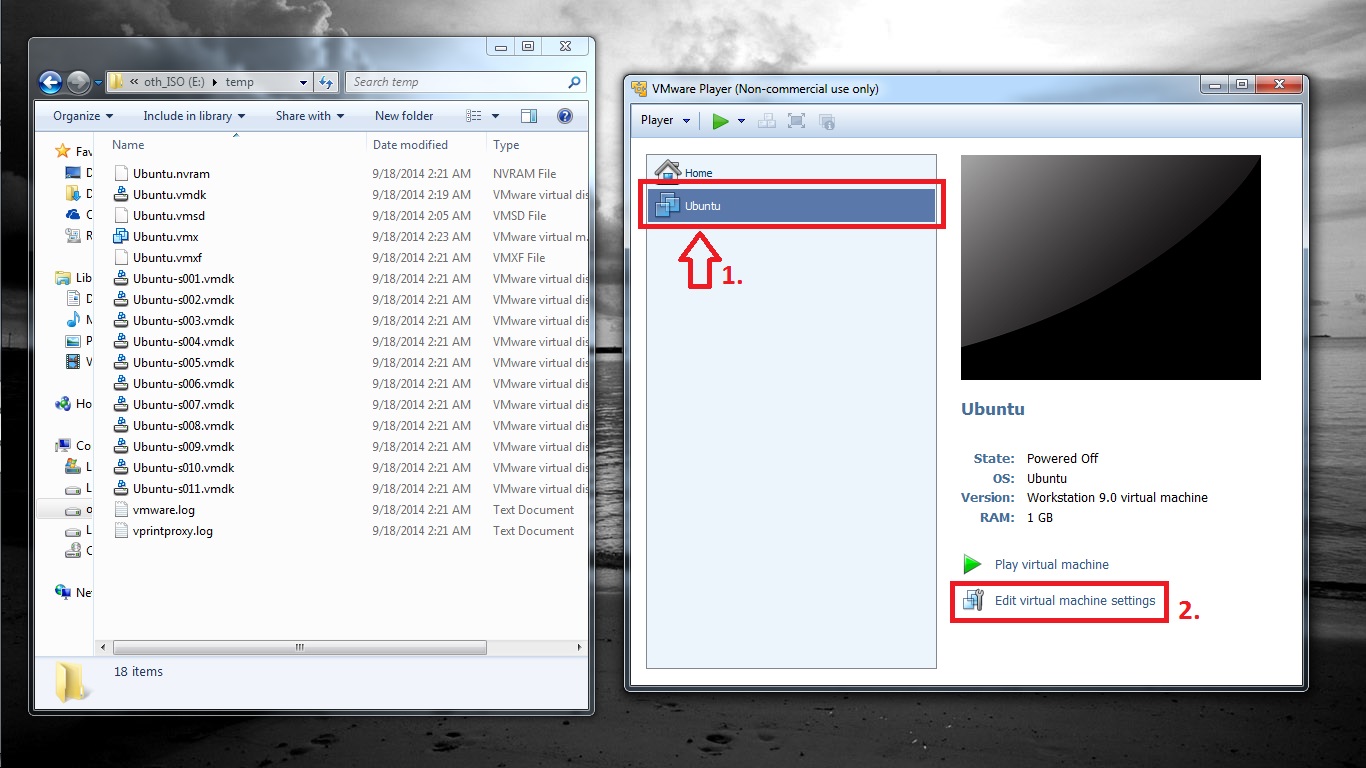
  • Once image is opened in VMware, select Virtual Machine and click on Edit virtual machine settings
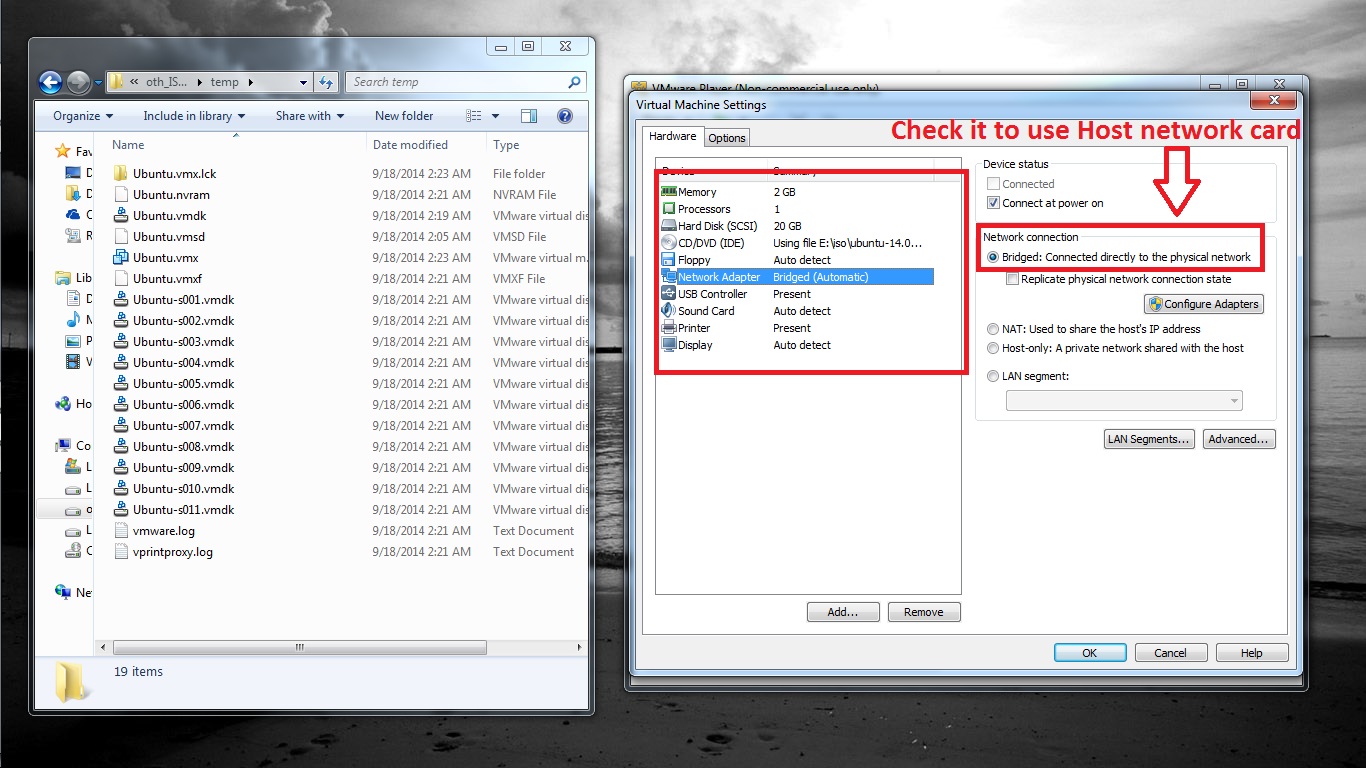
  • To use Network card that is already connected to Internet, navigate to Network Adapter
  • Select Bridged: Connected directly to the physical network
  • Virtual machine will automatically can connection to Internet without any configuration.
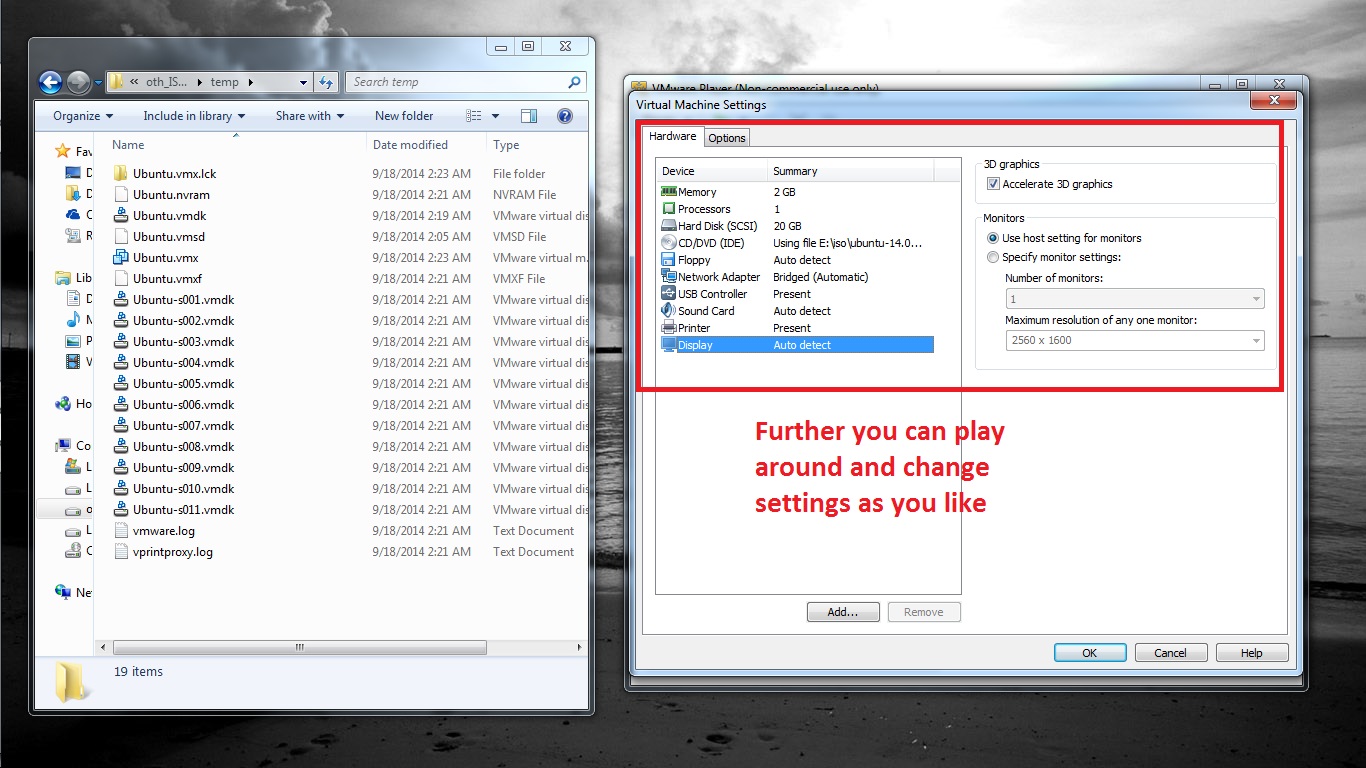
  • From Display enable Accelerate 3D graphics for better performance.
  • Further you can play around with settings but these were important to configure. Also keep in mind that changing some settings can be a problem, you may not be able to boot virtual machine then you have to change those settings back.

How to install VMware Tools?

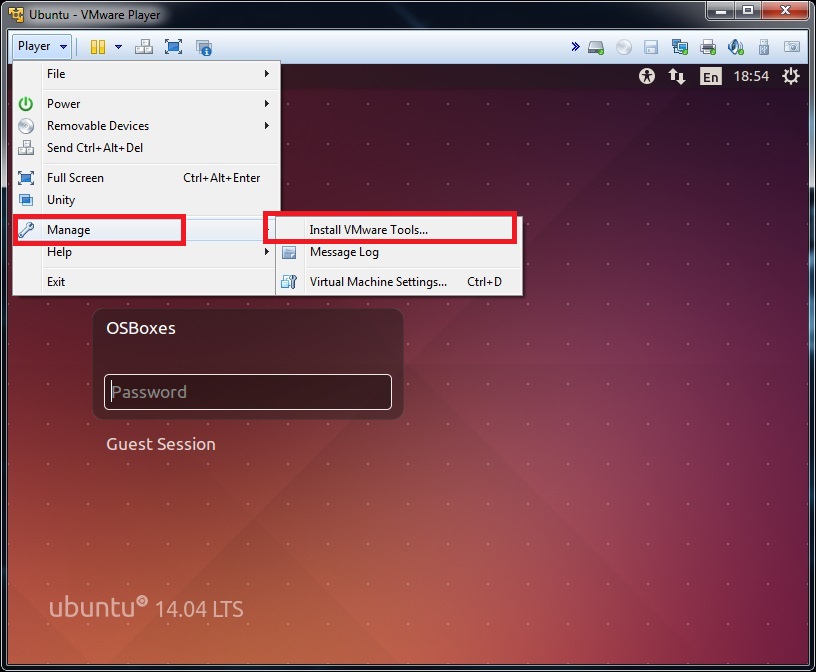
  • Once you turn on virtual machine, Go to menu Player
  • Select Install VMware Tools under Manage section.
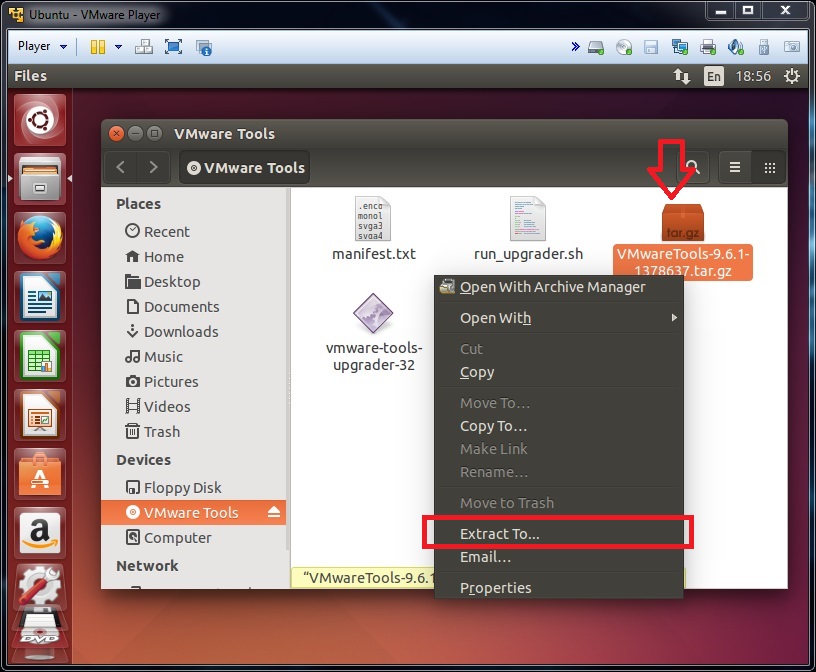
  • Go to VMware Tools where iso is mounted.
  • Right click on VMware-Tools-xxx.tar.gz file and select Extract To option then select directory and extract this archive.
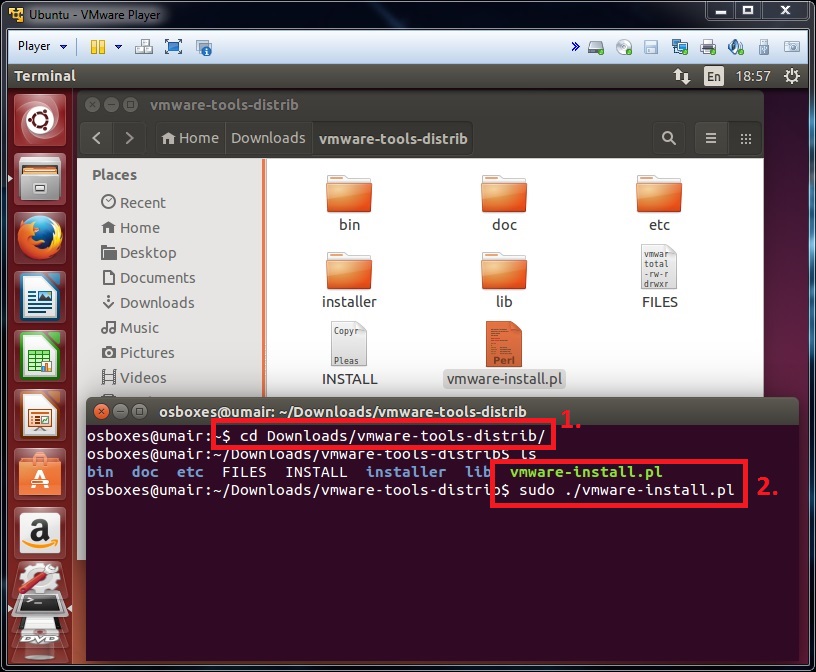
  • Now open Terminal
  • Go to directory where you extracted tools from Terminal
  • Here you will find out vmware-install.pl file
  • Enter this command to install Vmware Tools sudo ./vmware-install.pl
  • And follow instructions (To install these tools you don’t even need to change any default option, unless you need it).

------------------------------


-------------------------------
Fuentes:

0

Este blog se está transportando a un sitio "más libre".
Puede consultarse este artículo en su nueva ubicación:
>>>>>>>>>>>>>>>>>>>>>>

2

He tenido que instalar Windows 10 en una máquina virtual para instalar Itunes y poder así ver qué puedo hacer con un Ipad3 que tengo. Hay aplicaciones que sencillamente ya no son compatibles con IOS 9, que es la actualización máxima disponible para Ipad3. Es posible que pueda instalarle desde itunes versiones anteriores de las apps.
¿Cómo era aquello de "excusatio..." Bueno, dejémoslo :)

NO ME ENROLLO MÁS, voy a ir al grano:


Se me plantea el siguiente procedimiento para VALIDAR WINDOWS 10 sin hacerme betatester a full:

Desde PowerShell (admin) introducir los siguientes sortilegios que, tratándose de cosas de Windows y su entorno, me inspiran desconfianza (Y es el procedimiento para mí novedoso, lo cual me da más mala espina también. Aunque cabe la posibilidad de que la desconfianza sea agravada por mi IGNORANCIA):

slmgr /ipk XXXX-XXXX-XXXX-XXXX-XXXX (aquí va la clave del producto)


slmgr /skms 
kms.msguides.com (si no funciona, deberemos sustituirlo por kms.digiboy.ir)

slmgr /ato

La primera línea la veo inofensiva.

No así la segunda.

La segunda apunta al kms de digiboy.ir ô al de msguides.com

Entro en esas dos páginas y veo que una está escrita en caracteres raros y la otra... bueno la otra apesta un poco también.

Miro qué dice Microsoft de la activación mediante KMS.

No entiendo una puta mierda.

¿Qué riesgos tiene la ejecución de "slmgr /skms kms.digiboy.ir" y, a continuación, "slmgr /ato" que apuntan a páginas de mierda?


Ya lo averiguaré.


(Continuará...)


*-*-*-*-*-*-*-*-*-*-*-*-*-*-*-*-*-*-*-* anexo

slmgr /ipk XXXX-XXXX-XXXX-XXXX-XXXX (aquí va la clave del producto)

slmgr /skms kms.digiboy.ir (si no funciona, deberemos sustituirlo por kms.msguides.com)


slmgr /ato

Algunos de los códigos publicados por los foros y la página oficial de Microsoft son los siguientes:

Windows 10 Pro: W269N-WFGWX-YVC9B-4J6C9-T83GX
Windows 10 Pro N: MH37W-N47XK-V7XM9-C7227-GCQG9
Estaciones de trabajo de Windows 10 Pro: NRG8B-VKK3Q-CXVCJ-9G2XF-6Q84J
Estaciones de trabajo de Windows 10 Pro N: 9FNHH-K3HBT-3W4TD-6383H-6XYWF
Windows 10 Pro Education: 6TP4R-GNPTD-KYYHQ-7B7DP-J447Y
Windows 10 Pro Education N: YVWGF-BXNMC-HTQYQ-CPQ99-66QFC
Windows 10 Education: NW6C2-QMPVW-D7KKK-3GKT6-VCFB2
Windows 10 Education N: 2WH4N-8QGBV-H22JP-CT43Q-MDWWJ
Windows 10 Enterprise: NPPR9-FWDCX-D2C8J-H872K-2YT43
Windows 10 Enterprise N: DPH2V-TTNVB-4X9Q3-TJR4H-KHJW4
Windows 10 Enterprise G: YYVX9-NTFWV-6MDM3-9PT4T-4M68B
Windows 10 Enterprise G N: 44RPN-FTY23-9VTTB-MP9BX-T84FV

Home: TX9XD-98N7V-6WMQ6-BX7FG-H8Q99
Home N: 3KHY7-WNT83-DGQKR-F7HPR-844BM
Home Single Language: 7HNRX-D7KGG-3K4RQ-4WPJ4-YTDFH
Home Country Specific: PVMJN-6DFY6-9CCP6-7BKTT-D3WVR
Professional: W269N-WFGWX-YVC9B-4J6C9-T83GX
Professional N: MH37W-N47XK-V7XM9-C7227-GCQG9
Education: NW6C2-QMPVW-D7KKK-3GKT6-VCFB2
Education N: 2WH4N-8QGBV-H22JP-CT43Q-MDWWJ
Enterprise: NPPR9-FWDCX-D2C8J-H872K-2YT43
Enterprise N: DPH2V-TTNVB-4X9Q3-TJR4H-KHJW4


------------------------------------------
Fuentes: